Reproducible dev environments,
anywhere.

CodingBooth delivers fully reproducible, isolated development environments — anywhere, on any machine. One command. Your code, your UID, your workflow.

$ curl -fsSL https://codingbooth.io/install.sh | bash

Requires Docker and Bash·Linux, macOS, or Windows

Coding Booth

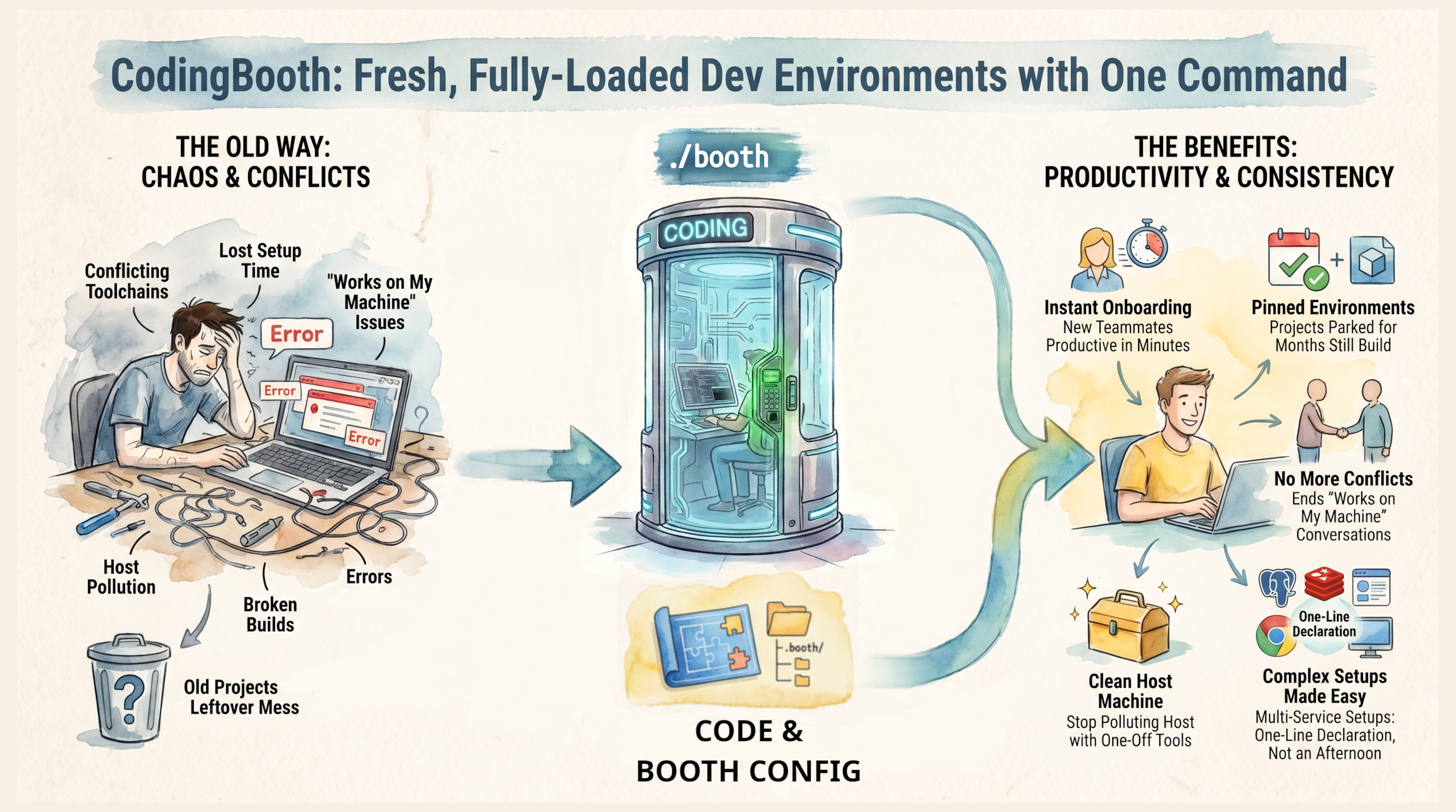
CodingBooth overview: chaos and conflicts on the left, the booth in the middle, productivity and consistency on the right

You've containerized your app. You've containerized your build. But your dev environment is still a mess of system-wide installs, mismatched versions, and onboarding docs no one ever updates. CodingBooth fixes that. On the left: tangled toolchains, “works on my machine” fights, a polluted host from every past project, and old code you can’t build anymore. In the middle: booth — just your code + a tiny .booth/ config in the repo. Run ./booth and a clean, isolated environment appears around your project, owned by your user. On the right: teammates become productive in minutes, projects you can revive after months, zero conflicts, a clean host, and complex multi-service setups reduced to one line.
Why & Who?

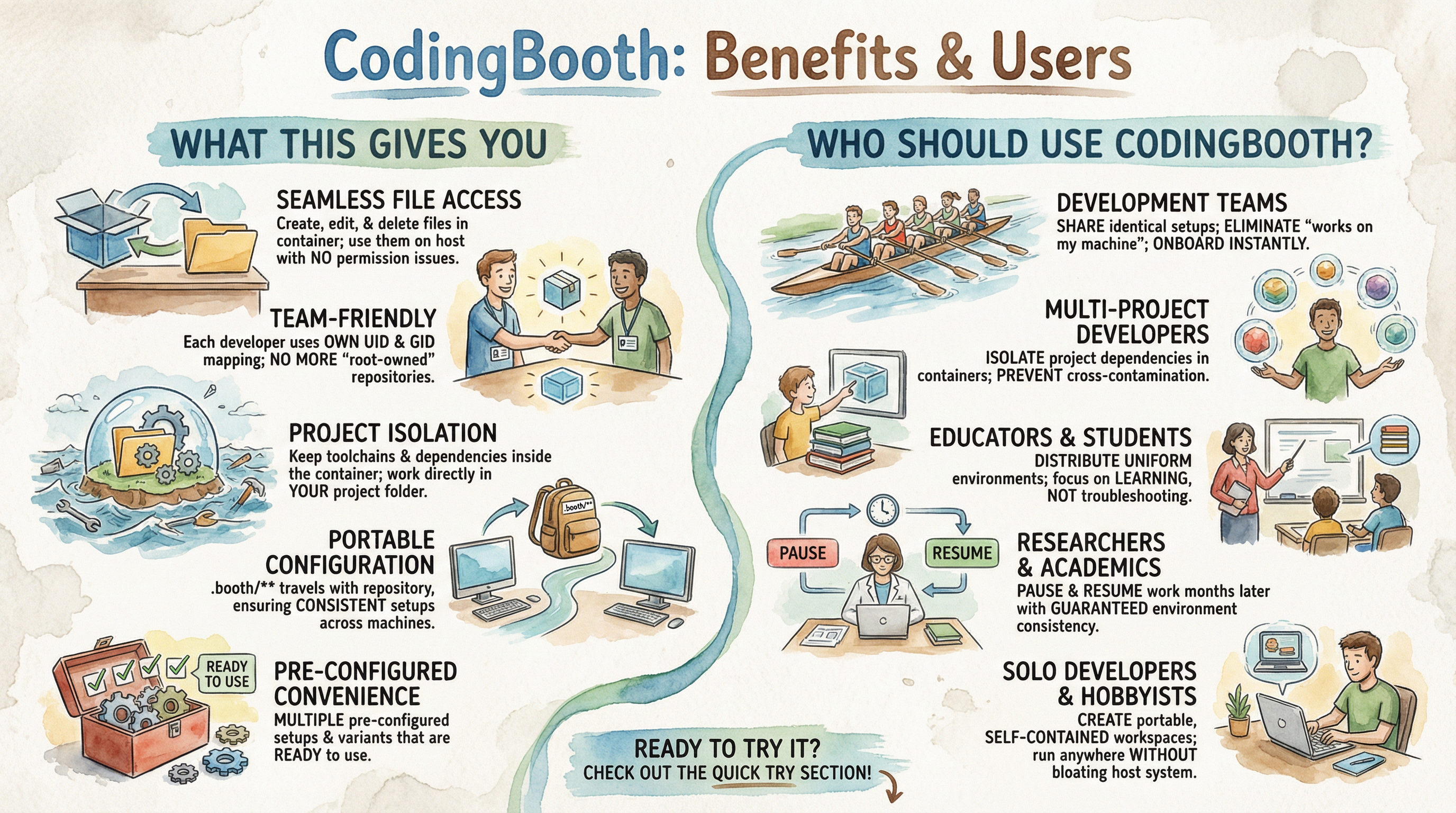
What CodingBooth gives you on the left, who should use it on the right

Two ways to think about CodingBooth: the things it gives every developer, and the people it was built for. On the left — what booth gives you: seamless file ownership via host UID/GID mapping, project isolation, portable .booth/ config that travels with the repo, and a library of pre-configured setups ready to run. On the right — who it's for: teams onboarding new developers in minutes, polyglot developers juggling projects without cross-contamination, educators distributing uniform environments, researchers reviving work months later, and solo developers keeping their host clean.

Pick Your UI (Variants)

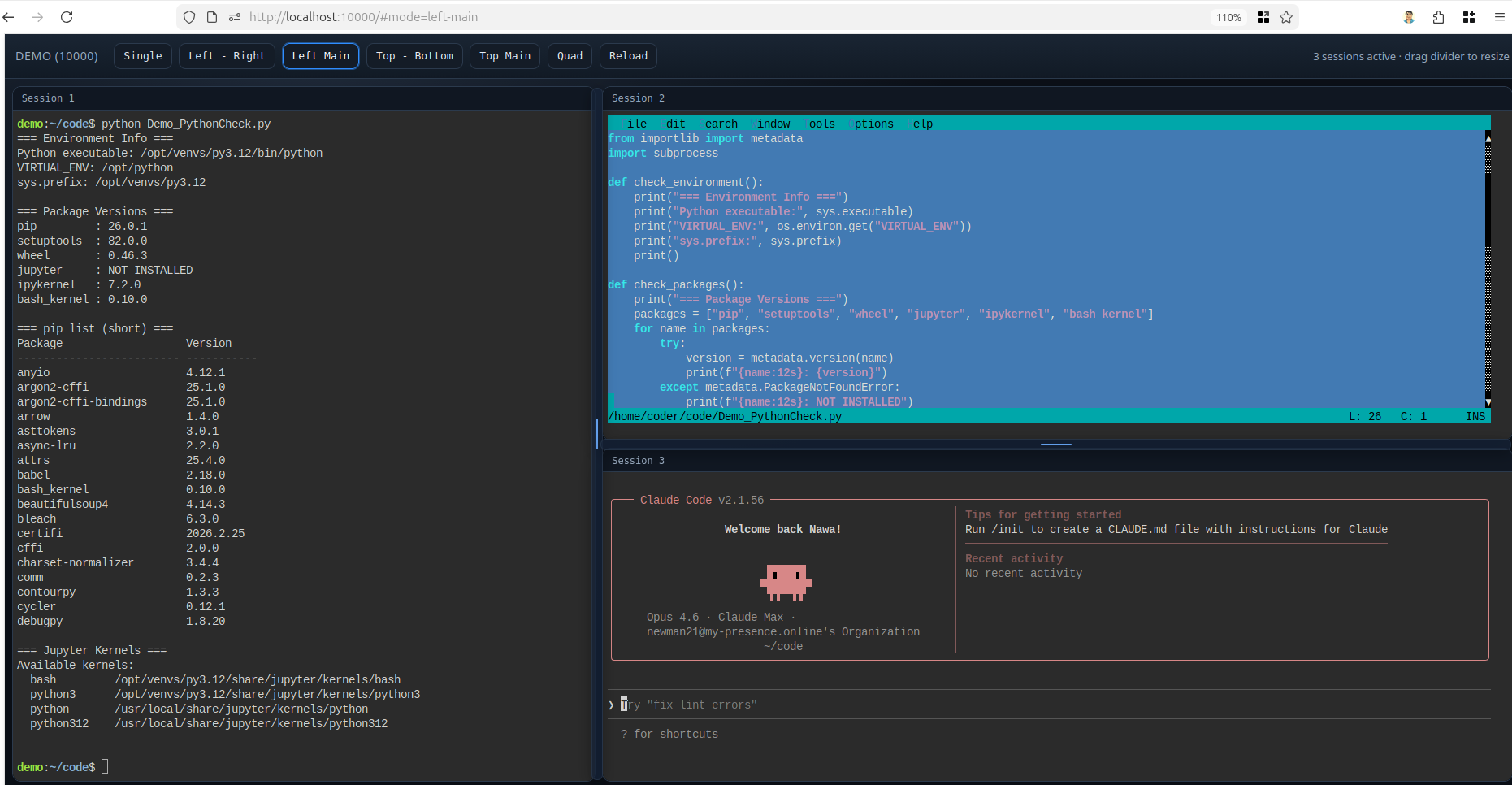
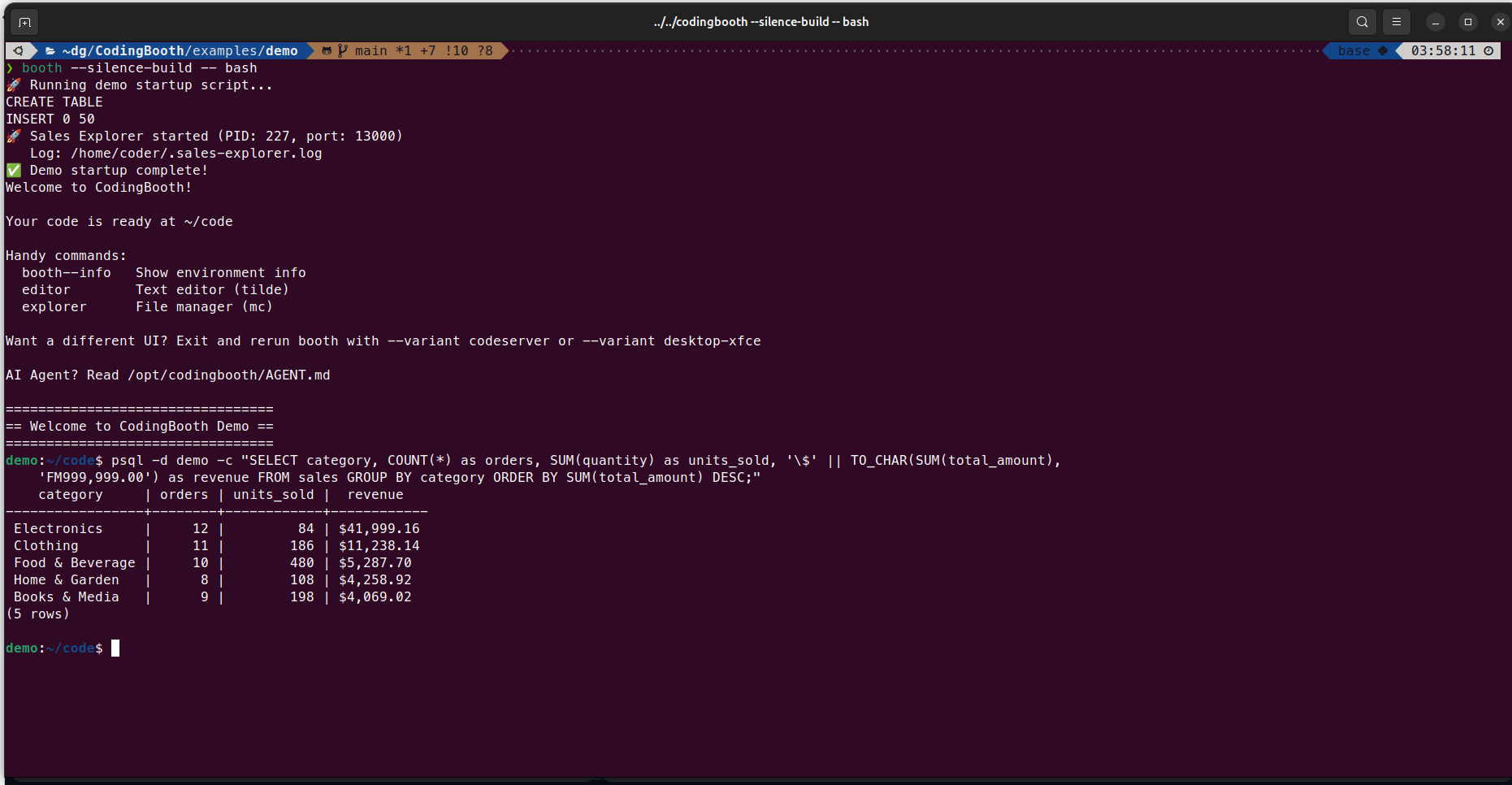
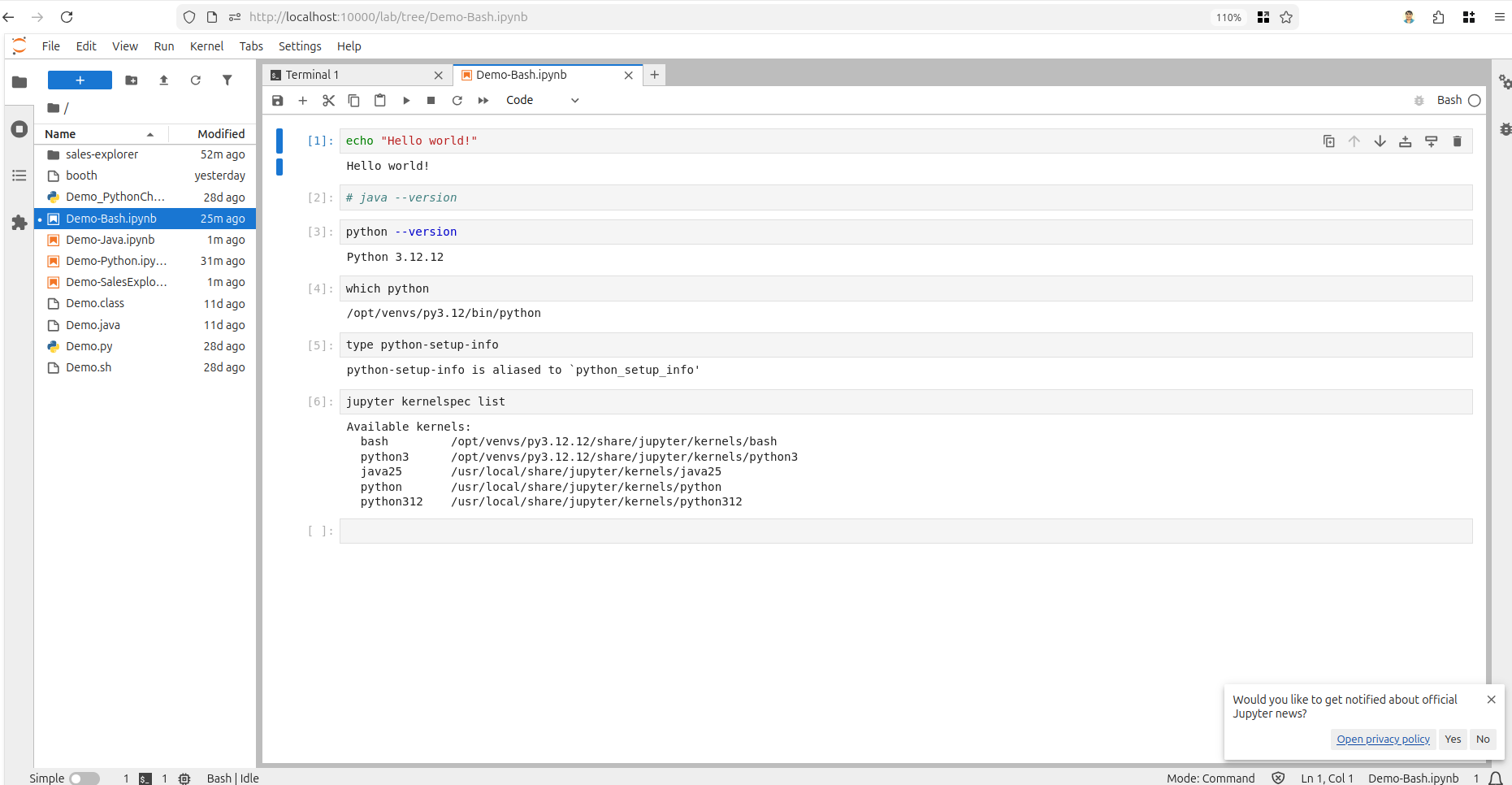
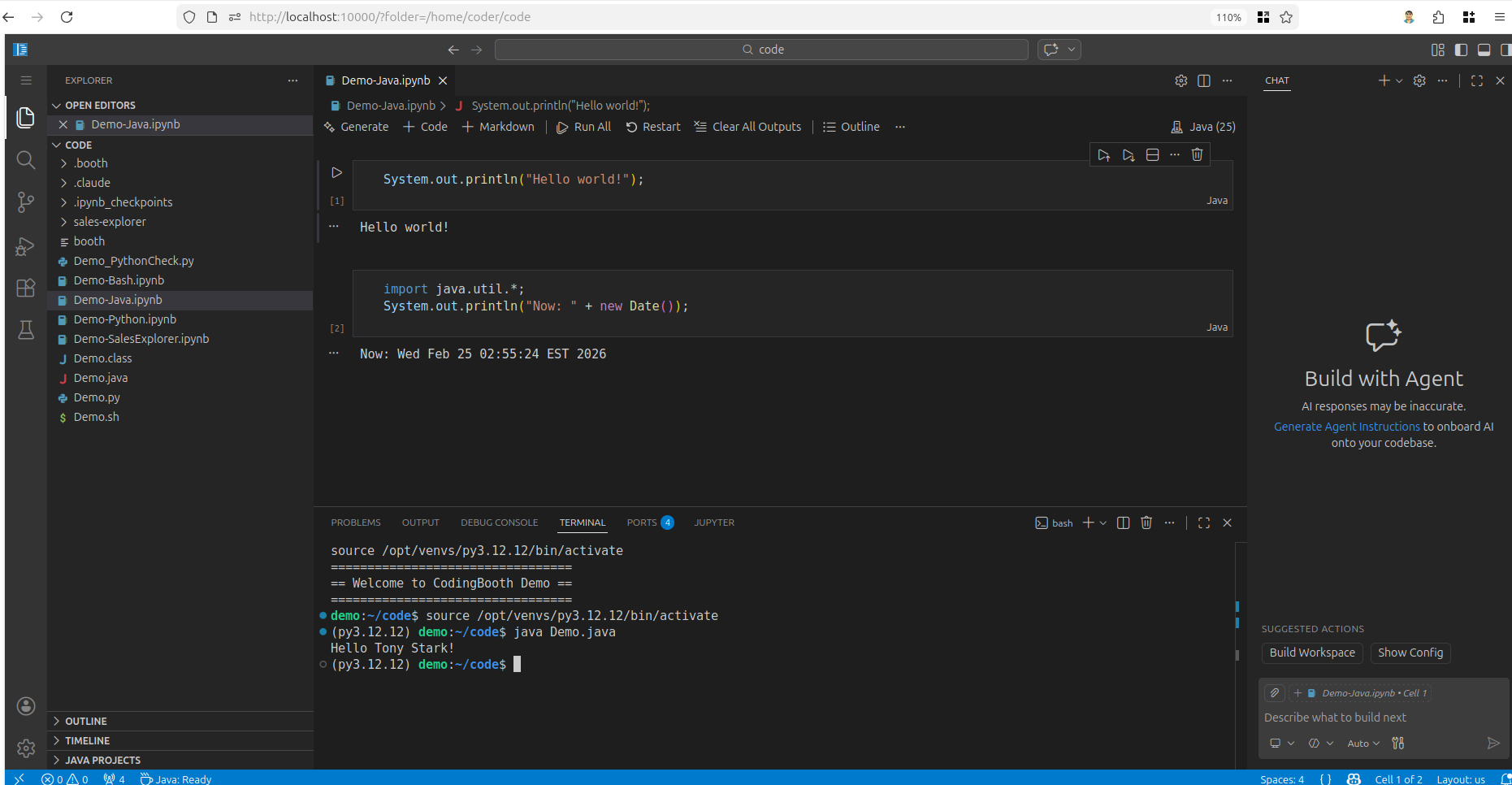
Same booth, six different ways to drive it. A variant only changes the UI — the container, your code, your toolchain, and your .booth/ config stay identical. Pick a shell when you need a prompt, an IDE when you want autocomplete, a notebook for experiments, or a full Linux desktop for windowed apps. Switch with a single --variant flag — no separate environment.

Base variant
Base
booth --variant base

Minimal browser terminal (ttyd) plus the baseline toolset. Lightweight starting point for quick CLI work — or a foundation to extend.

Terminal variant
Terminal
booth --variant terminal

Skip the browser — drop straight into the booth's shell in your host terminal. Shortcut for booth -- bash.

Notebook variant
Jupyter Notebook
booth --variant notebook

JupyterLab with multi-language kernels (Python, Bash, Java, more). Ideal for experiments, data work, and runnable tutorials.

Code Server variant
VS Code (codeserver)
booth --variant codeserver

Full browser VS Code with extensions, Git, and an integrated terminal. Your usual editor without installing anything locally.

XFCE Desktop variant
XFCE Desktop
booth --variant desktop-xfce

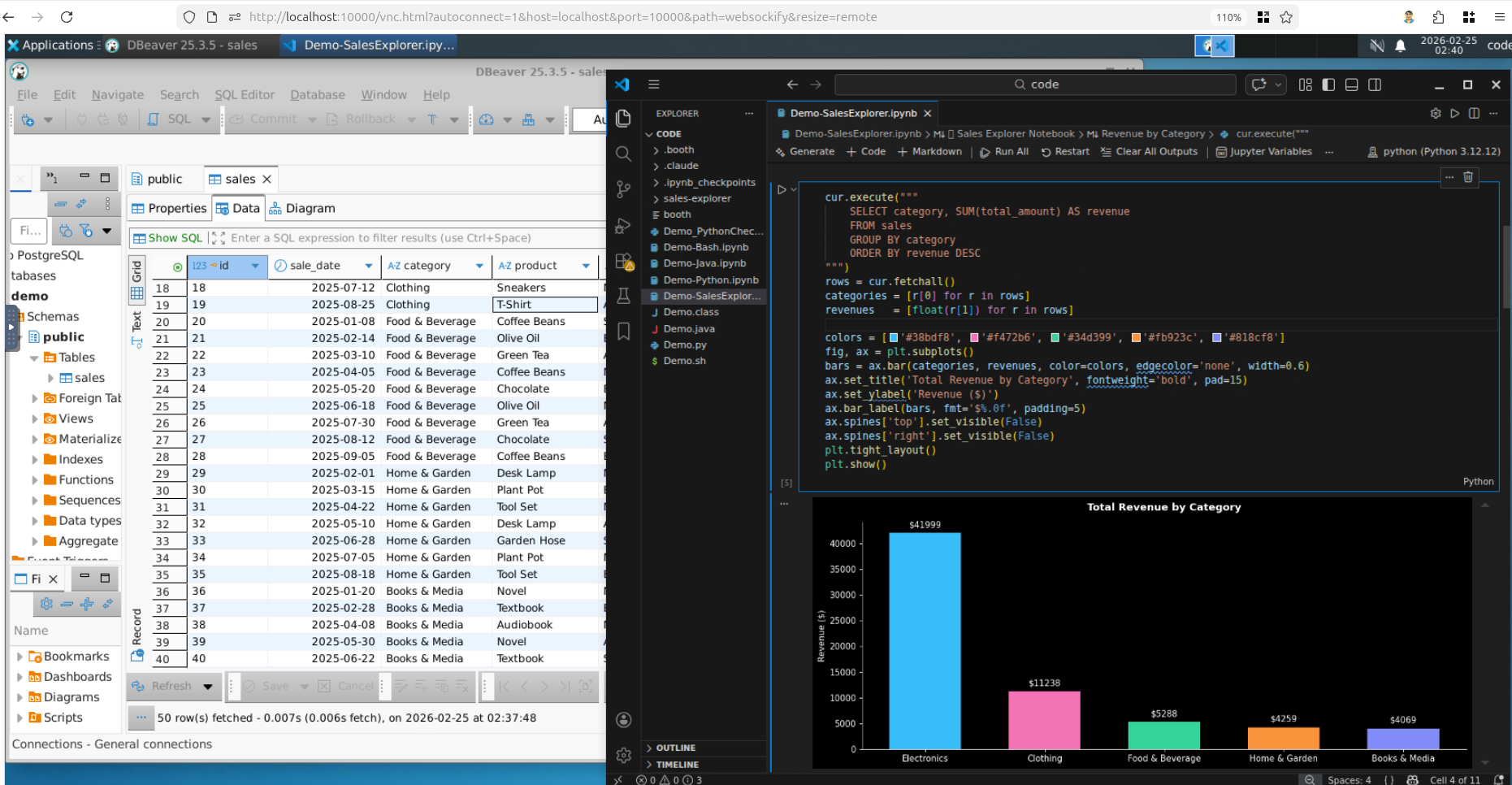
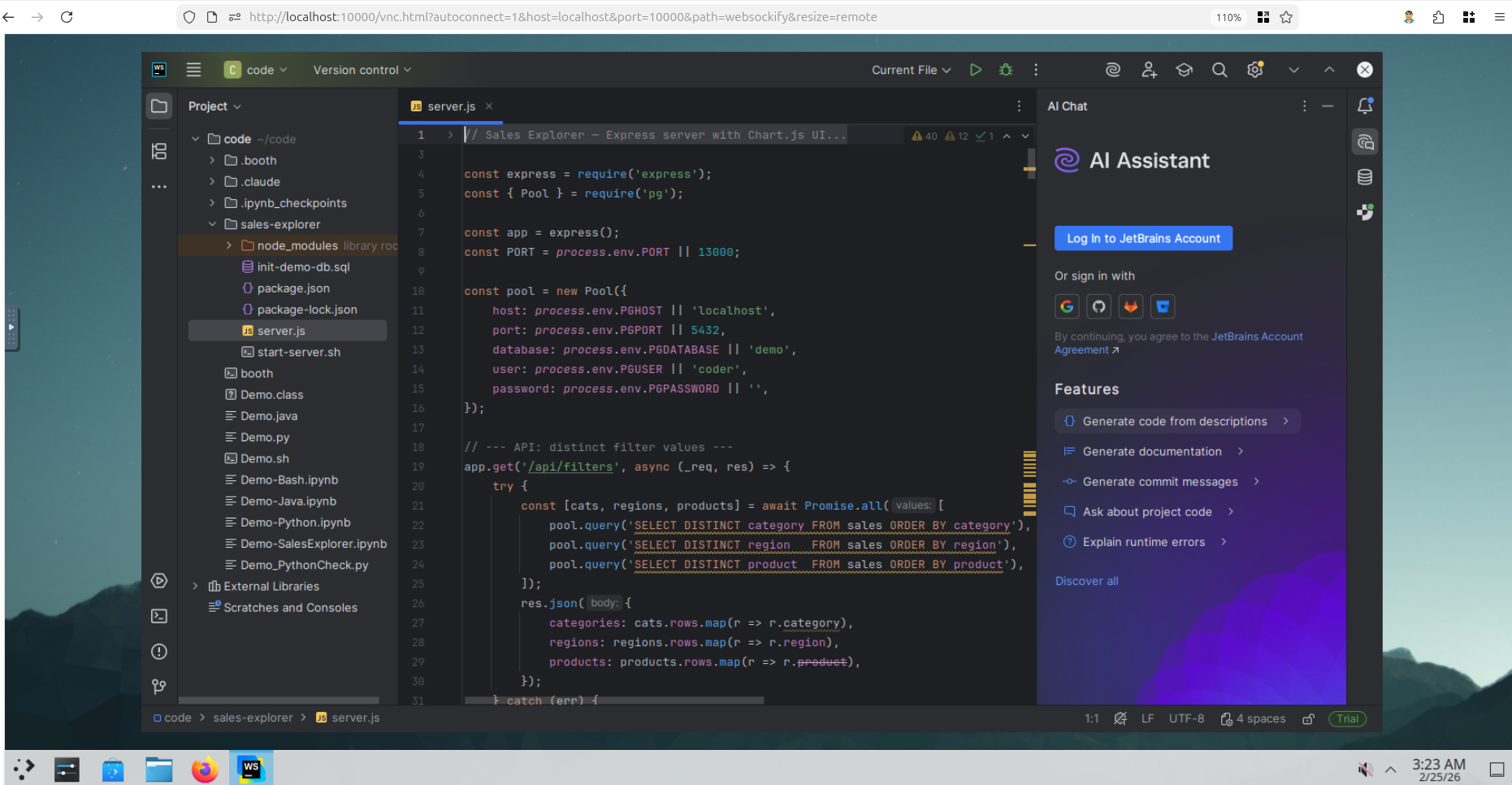
A complete Linux desktop in your browser via noVNC. Run native IDEs (IntelliJ, PyCharm, Eclipse, KiCad) and any windowed app.

KDE Desktop variant
KDE Desktop
booth --variant desktop-kde

Same idea as XFCE but with KDE Plasma — a richer desktop feel if that's your taste.

Demo!

A Snake game in Zig — built and run inside the booth on a host that has no Zig toolchain installed.

Watch the full demo on YouTube →

Quick Try

Three steps to a working booth.

  1. Install
    curl -fsSL https://codingbooth.io/install.sh | bash
  2. Try an example
    ./booth example list
    ./booth example try zig-snake my-snake
    cd my-snake
    ./booth
  3. Open the UI

    Visit http://localhost:10000 in your browser.

Or scaffold from scratch with booth config's interactive TUI — see the User Guide for the full feature reference.

  • Create a fresh project: mkdir my-bun-app && cd my-bun-app.
  • Run booth config to scaffold a .booth/ interactively.
  • Switch to the Config tab () — global booth settings live here.
  • Open the Variant cycle-field (Enter) and cycle to codeserver with .
  • Commit (Enter) — variant captured.
  • Back to Languages () — Space selects bun, Enter opens its parameter editor (BUN_VERSION, BUN_PKGS). Esc leaves the editor (selection preserved);
  • Ctrl+S to saves and exits the config TUI.
  • Terminal: .booth/ initialized; Boothfile shows setup bun + setup bun-code-extension.

Learn More

Deeper guides, reference material, and the full documentation index.

Community & Feedback

CodingBooth is built to meet real developer needs — simple, reproducible, and flexible without unnecessary complexity. Your feedback and contributions help it evolve and stay relevant for everyone.

Issues & Contributions

  • Report Bugs & Request Features: Use the Issues page to report bugs, request features, or suggest improvements.
  • Pull Requests: PRs are always welcome — but I reserve the right to reject any PR that doesn't align with my vision for the project.
  • Discussions: Have a creative idea, workflow, or enhancement to share? Open an issue or discussion — I'd love to hear it.
  • Direct Contact: Prefer to reach out directly? Feel free to contact me through any of the links in the "Contact Me" section (on the right).

Support & Appreciation

If CodingBooth has saved you time, simplified your setup, or made development more enjoyable, please consider supporting the project:

Your encouragement keeps this project active — and might even help with my kids' college fund.

Contact Me

Stay in touch or follow updates, insights, and development notes:

Every issue, idea, and pull request — big or small — helps make CodingBooth better for everyone. Thank you for being part of the community!

Coming soon

Run CodingBooth Online

A hosted version with no install — open a URL and you're in your booth.
No Docker on your machine, no setup, just code.

Want to know when it's ready?